Custom SMTP Server
Send a form's email through an SMTP server managed by you instead of Basin's default delivery service.
Paid Feature
This feature is only available on the Pro and Agency plans. Free, Starter, and Growth users will need to upgrade to use this feature. The Pro plan can only have 1 custom SMTP server. The Agency plan can have unlimited custom SMTP servers.
SMTP servers belong to projects and can be assigned to forms in that project. This differs from a Custom Email Sending Domain, which authenticates your domain while Basin continues to deliver the message.
Setup
To add a custom SMTP server to Basin, navigate to your project and select Servers, then click Add Server.
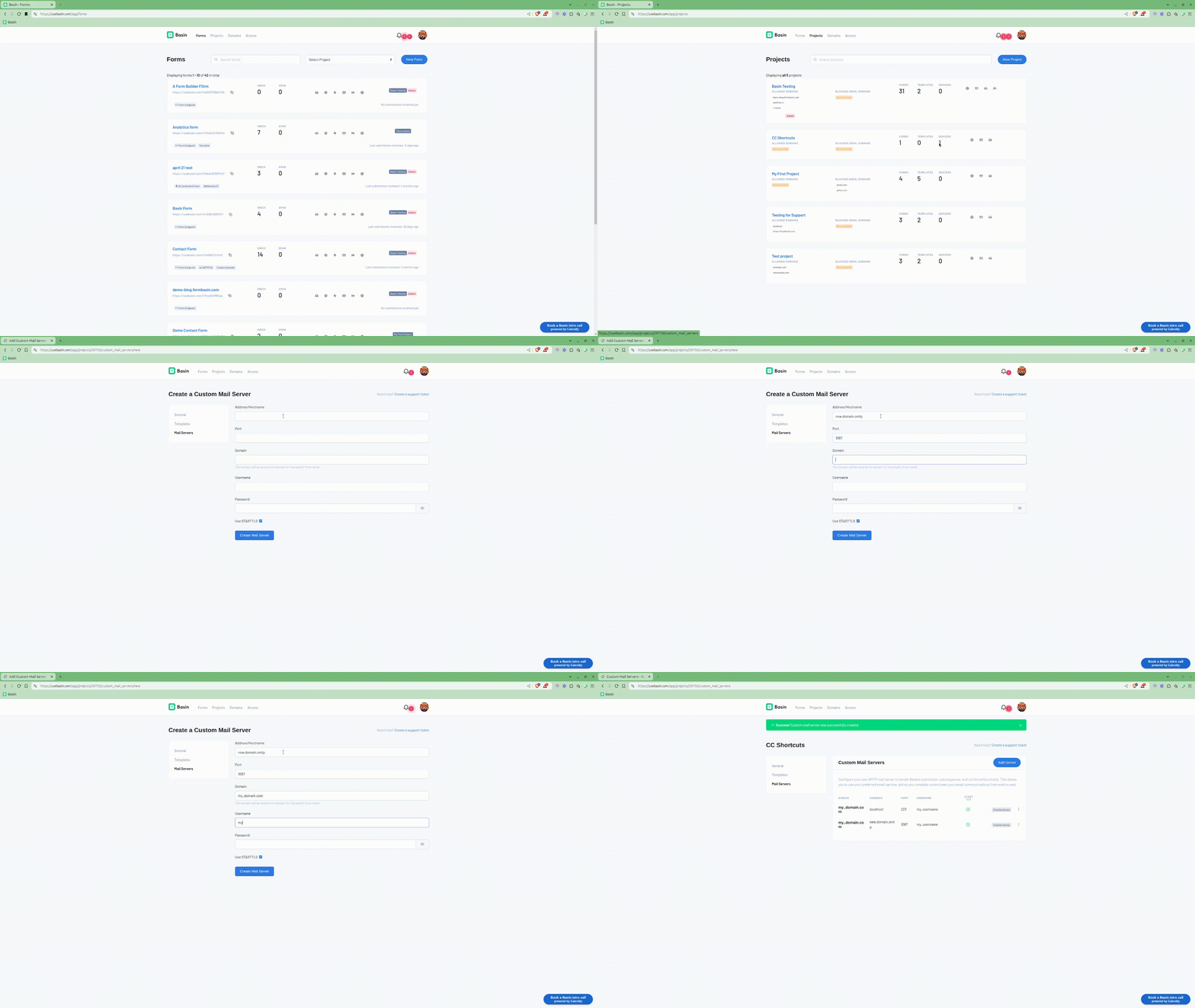
Adding a server to a form
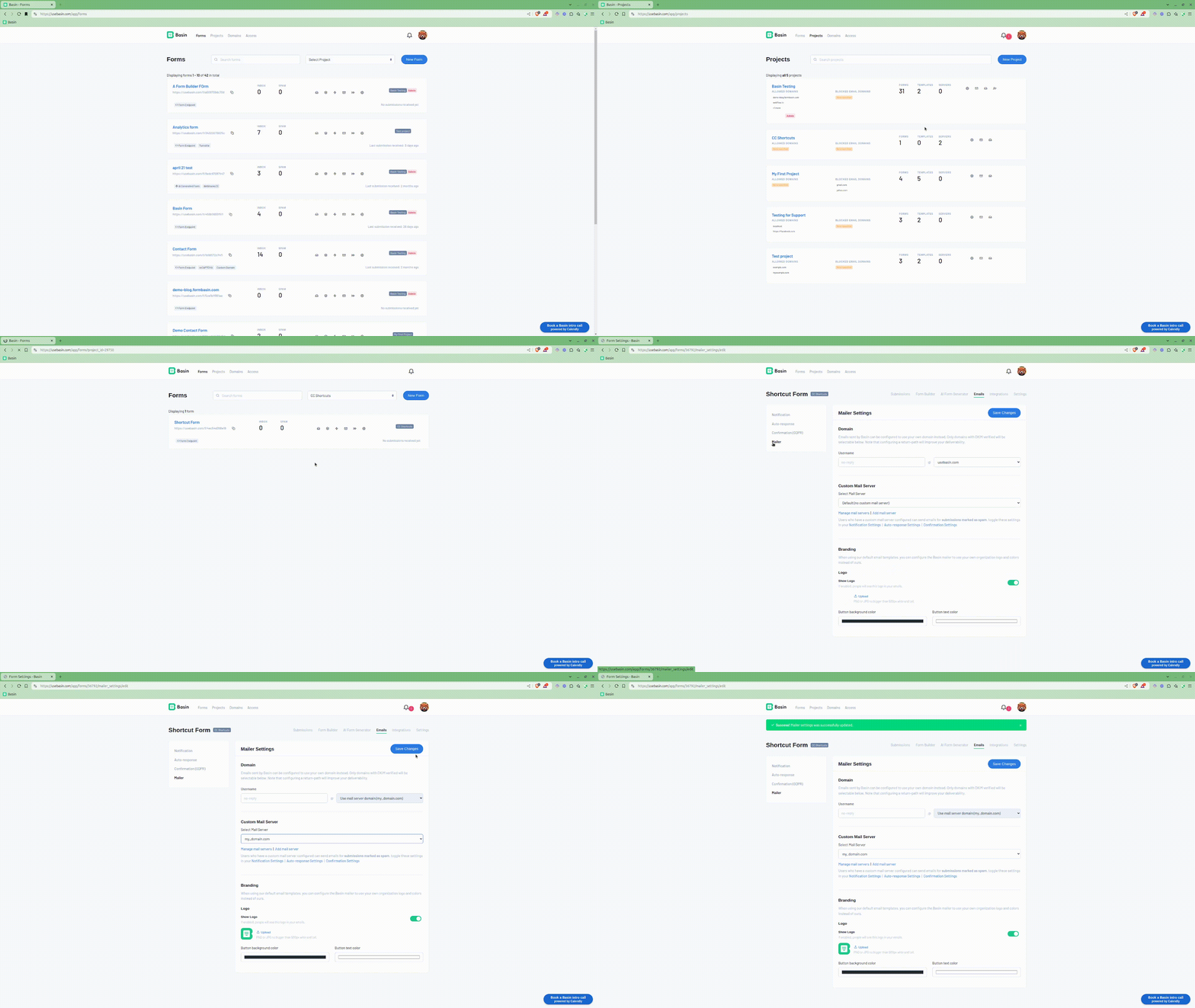
To use the custom mail server for sending emails for a form, navigate to the form and click on the "Emails" tab. Then click on the "Mailer" tab and select the server you want to use for sending emails for submissions to this form. After saving, your custom mail server will be used instead of the default for this form.
Note
If emails fail to send from your custom mail server, submissions will automatically fall back to the default.
Authentication
Choose the authentication method advertised by your SMTP provider when you add or edit a server:
- AUTH LOGIN is required by Microsoft Azure Communication Services (
smtp.azurecomm.net) and is commonly used with Office 365 (smtp.office365.com). - AUTH PLAIN is supported by providers such as SendGrid and other compatible SMTP services.
For Microsoft SMTP servers, use port 587 with Use STARTTLS enabled. OAuth/XOAUTH2 authentication is not supported. If you are unsure which method your provider requires, check its SMTP AUTH capabilities after STARTTLS.
Troubleshooting
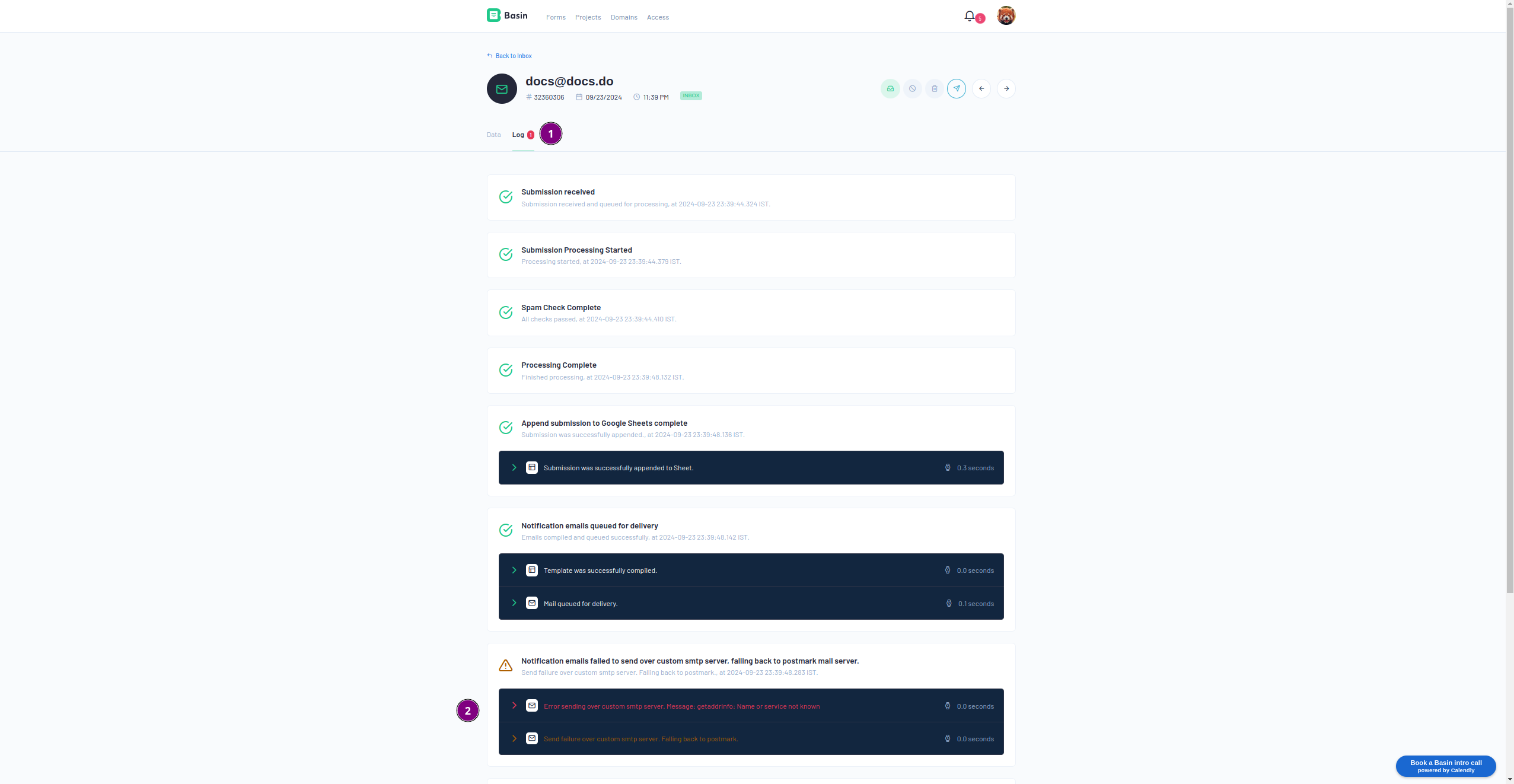
Having issues with your custom mail server? Check the submission log for error messages.