Multi-Step Forms
Collect leads and gather more data from your forms across multiple steps.
Basin powers the full form submission lifecycle, including draft and completed states. Multi-step forms submit data directly to your Basin form endpoint as standard form submissions — Basin saves progress as users fill out each step.
Paid Feature
This feature is only available on the Agency plan. Free, Starter, Growth, and Pro users will need to upgrade to use this feature.
How do multi-step forms work?
Multi-step forms on usebasin.com are designed to streamline data collection by dividing a single form into multiple sections. As users navigate through each section, Basin tracks and stores the entered data, ensuring a cohesive submission. If a user exits the form part way through filling it out, Basin retains the data as a 'draft' for 15 minutes before marking it as 'incomplete.' Completed forms are seamlessly recorded as 'completed' submissions. This feature enhances data collection by saving progress even from partially completed forms, offering a comprehensive view of user interactions.
Tutorial Video
Setting up multi-step forms
1. Include the BasinJS script
Paste the example code below anywhere before the</body> tag:
2. Set up your form for multi-step collection
Add data attributes to your form as follows:
- Add
data-basin-multistepto your<form>element
3. Optional: Set up form auto navigation
Don't want to code up the javascript to navigate between pages on your multi-step form? We've got you covered. Simply add these extra tags to your form and BasinJS will automatically move between pages/steps on your form.
-
Add
data-basin-stepto each page/step on your form.Example:
-
Add
data-basin-nextanddata-basin-previousto your navigation buttons.Let BasinJS know which buttons are for navigating between pages on your form.
Example:
Full example with auto-navigation
<form id="multiPageForm" action="https://usebasin.com/f/[YOUR_FORM_ENDPOINT]" method="POST" data-basin-multistep>
    <div id="step1" data-basin-step>
        <h2>Step 1: Personal Information</h2>
        <label for="name">Name:</label>
        <input type="text" id="name" name="name">
        <br><br>
        <label for="email">Email:</label>
        <input type="email" id="email" name="email">
        <br><br>
        <button type="button" data-basin-next>Next</button>
    </div>

    <div id="step2" data-basin-step>
        <h2>Step 2: Address</h2>
        <label for="address">Address:</label>
        <input type="text" id="address" name="address">
        <br><br>
        <label for="city">City:</label>
        <input type="text" id="city" name="city">
        <br><br>
        <button type="button" data-basin-previous>Previous</button>
        <button type="button" data-basin-next>Next</button>
    </div>

    <div id="step3" data-basin-step>
        <h2>Step 3: Age</h2>
        <label for="age">Age:</label>
        <input type="number" id="age" name="age">
        <br><br>
        <label for="DOB">DOB:</label>
        <input type="date" id="DOB" name="DOB">
        <br><br>
        <button type="button" data-basin-previous>Previous</button>
        <button type="submit">Submit</button>
    </div>
</form>
<script src="https://js.usebasin.com/v2.11.1.min.js" defer></script>
4. Optional: Trigger draft submissions mid-page with data-basin-fetch
Normally, a draft submission is triggered when a user navigates between pages on your multistep form. However, you can trigger a draft submission mid-page by adding the data-basin-fetch attribute to any focusable element on your form. The draft submission will be triggered as users progress through the form.
Example:
Advanced: Basin multi-step forms API
Don't want to use BasinJS? Want to roll your own Javascript to interact with Basin? No problem, follow these steps to get going:
-
Acquire a JWT from Basin
Make a
GETrequest tohttps://usebasin.com/f/[YOUR_FORM_ENDPOINT]/generate_jwtthis token will link your user's session to a single submission in Basin. This step needs to be completed before sending in the first part of the submission. -
POSTsubmissions to your form endpointOnce you have a JWT you can make
POSTrequests to your form endpoint (https://usebasin.com/f/[YOUR_FORM_ENDPOINT]). A multi-step form submission can be a draft submission or a complete submission. A draft submission is a submission that is not the final submission for the user session. For Basin to process multi-step form submissions properly, a few keys are required with each request:Required Key Type Description basinjsmultistepbool Tag letting Basin know this is a multistep submission, should always be truebasinjsdraftbool Tag for whether this is a draft or the final submission, should be trueif there will be more POSTs from this user session that should be linked to the same submission in Basin. Should befalseif this is the final POST for the submission.basinjwtstring The JWT acquired in Step 1 from https://usebasin.com/f/[YOUR_FORM_ENDPOINT]/generate_jwt, links this POST request to a submission in Basin. -
Expected responses
All draft submissions will return a
200 OKresponse if accepted. Any other response should include a relevant error message.
Configuration
Emails
All the standard emails will fire normally for multi-step form submissions. Basin also includes an additional email that can fire when a submission is incomplete. Check out the email docs for more info.
Webhooks and multi-step forms
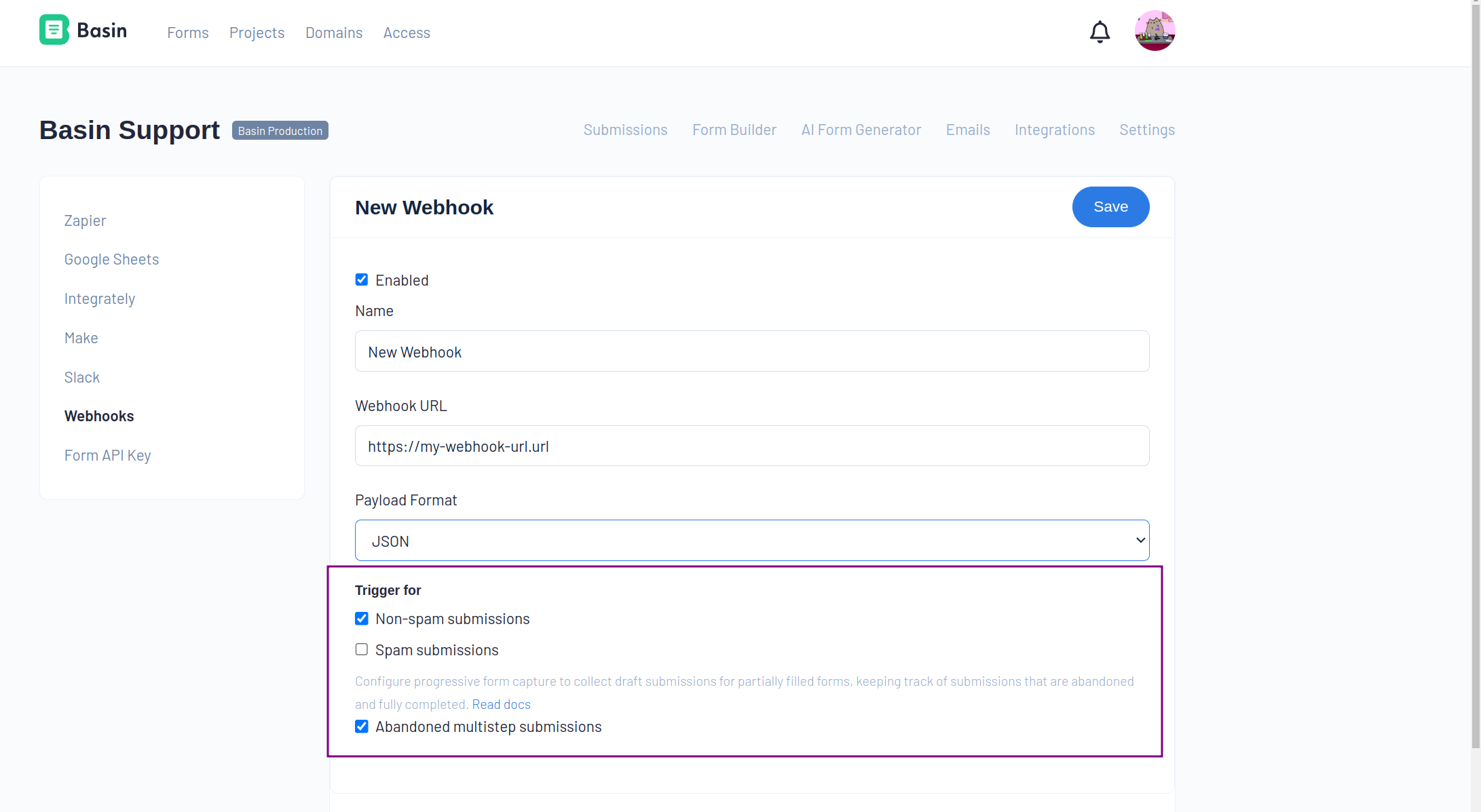
Basin's integrations give you full control over how your multi-step form submissions are handled. You can have webhooks fire for completed submissions, incomplete submissions or both. This allows you the flexibility to handle your submissions your way.
To configure your webhooks simply check the boxes for when you'd like the webhook to fire. Note that completed submissions are treated as 'non-spam' submissions
Google Sheets
For our Google sheets integration, we've added a new data attribute multistep_status to the data that can be appended to the Google sheet. This attribute will be set to completed, or incomplete depending on the status of the submission.
Privacy considerations
Please note that users residing in jurisdictions with specific privacy regulations (such as GDPR in the European Union, CCPA in California, or similar laws) may need to take additional steps to ensure compliance. These steps could include providing explicit consent for data collection, understanding their rights regarding data access and deletion, or adjusting form settings to align with local privacy requirements. We recommend reviewing the applicable privacy laws in your region and consulting with a legal professional if you have concerns about using Multi-Step Forms in your location. Basin is committed to data privacy, but it's the responsibility of form owners to ensure their data collection practices comply with all relevant local and international regulations.
Analytics for Multi-Step Forms
Basin provides specialized analytics to help you understand how users interact with your multi-step forms:
- Session Tracking - Monitor total sessions (both completed and incomplete) over time
- Completion Rate - Track the percentage of users who complete all steps
- Funnel Visualization - See exactly where users drop off in your form with step-by-step progression data
- Time-Based Analysis - View trends across week, month, and 3-month timeframes
These analytics help you identify problem areas in your form flow and optimize for better completion rates. Learn more in the Form Analytics documentation.
Related Features
- Incomplete Submission Follow-Ups - Automatically email users who don't finish your multi-step forms
- Basin JS - Learn more about BasinJS configuration options for multi-step forms
- Form Analytics - Track conversion rates and identify where users drop off in your forms
- Lead Agent - Score partial submissions to prioritize follow-up efforts