Exporting Submissions
Export your form submissions to CSV or XLSX for analysis, backup, or use in other tools.
Starter Plan Feature
Data export is available on the Starter plan and above.
Introduction
Basin allows you to export submissions directly from the submissions inbox. You can export from a single form or export across all your forms at once from the Submissions view. Whether you need to analyze data in a spreadsheet, create a backup, or import submissions into another system, exporting is quick and straightforward.
Export Formats
Basin supports two export formats:
- CSV (Comma-Separated Values) - A universal format compatible with virtually any spreadsheet application or data tool
- XLSX (Excel format) - Native Microsoft Excel format for direct use in Excel
Exporting from a Single Form
How to Export Submissions
Step 1: Navigate to Your Form's Submissions
Open your form in the Basin dashboard and click on the Submissions tab to view your submission inbox.
Step 2: Select Submissions to Export
Use the checkboxes in the leftmost column to select the submissions you want to export:
- Select individual submissions - Click the checkbox next to each submission you want to include
- Select all submissions on the current page - Click the checkbox in the header row to select all visible submissions
Step 3: Exporting All Submissions (Multi-Page)
If your form has more than one page of submissions and you want to export everything:
- Click the select all checkbox in the header row — this selects all submissions on the current page
- If there are multiple pages of submissions, a blue banner will appear with an option to select all
- Click the button in the banner to select all submissions across all pages
- All submissions matching your current filters will now be selected for export
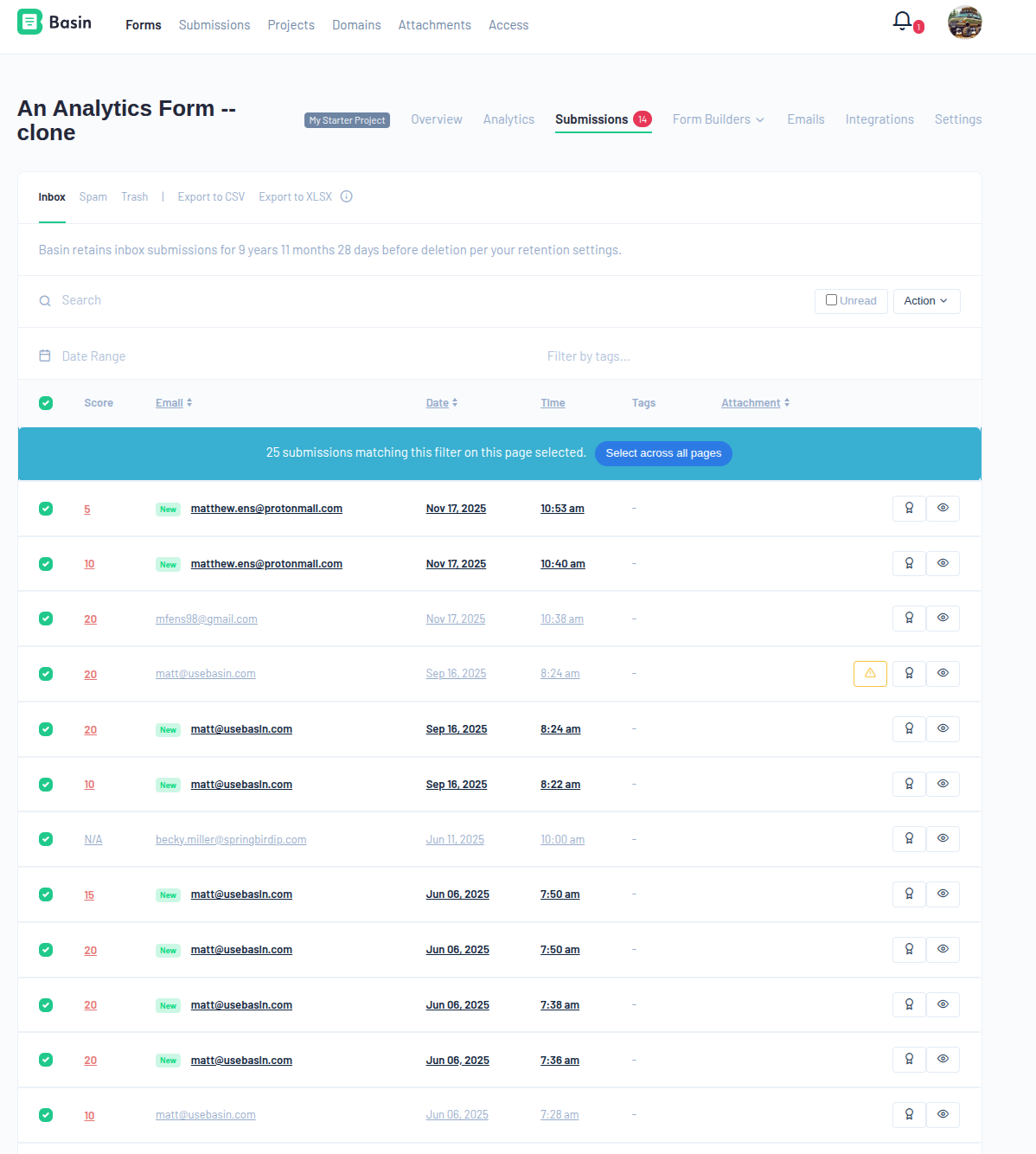
Step 4: Choose Your Export Format
Once you've selected your submissions, click either:
- Export to CSV - Downloads a .csv file
- Export to XLSX - Downloads an .xlsx file
The export will begin immediately and download to your browser.
Exporting Across All Forms
The All Submissions view lets you export submissions from multiple forms at once — no need to export each form separately.
How to Export All Submissions
Step 1: Go to All Submissions
Click All Submissions in the left-hand navigation to open the global submissions view.
Step 2: Apply Filters (Optional)
Use the filter controls to narrow down what gets exported:
- Form — limit to one or more specific forms
- Project — limit to forms within a project
- Lead Score — filter by minimum and maximum lead score
- Date Range — export a specific time window
- Search — keyword search across submission data
Step 3: Select Submissions
By default, all submissions matching your current filters are exported. To export only specific entries, use the checkboxes to select them first.
Exporting everything
If no checkboxes are checked, all submissions matching your filters are included automatically. You don't need to select anything for a full export.
Step 4: Click Export
Click Export to CSV or Export to XLSX in the tab bar. The export runs as a background job — a progress bar appears while it prepares.
Step 5: Download the File
When the export is ready, the Download submissions button becomes active. Click it to download a zip file. The zip contains one file per form, named with the form name and a unique identifier.
Large exports
Global exports may take longer depending on the number of submissions. The page will remain usable while the export runs in the background.
What's Included in the Export
When you export submissions, all fields from the selected submissions are included. This means:
- Every form field that received data will appear as a column
- Standard metadata fields (submission date, IP address, location) are included
- Lead scores are included when present
- File attachment URLs are included
Use Cases
Data Analysis Export to XLSX and use Excel's pivot tables, charts, and formulas to analyze submission trends.
CRM Import Export to CSV for easy import into your CRM or marketing automation platform.
Backup & Compliance Create regular exports as backups or to meet data retention requirements.
Cross-Form Reporting Use the global export to pull submissions from multiple forms into a single zip for consolidated reporting.
Related Features
- Data Storage & Management - Learn about submission retention and bulk deletion
- API Reference - Programmatically access submission data
- Google Sheets Integration - Automatically send submissions to a spreadsheet